
Latest News

  • Super Tower Defense 2 Game
    Sep 03, 2010

    New to the games section is Super Tower Defense 2. Featuring more maps, new units and bigger explosions.

  • Super Cards Online Multiplayer Game
    Aug 13, 2010

    Released today in the games section is the new Super Cards multiplayer card game. The aim of the game is to get rid of all your playing cards before your opposition.

  • Silverlight Online Chat
    Jul 24, 2010

    Today we launch the new Silverlight Live Chat application demonstrating the Liquid RichTextBox and Emoticon replacements.

  • New Super Shoot Em Up 2 Game
    Jun 29, 2010

    Added to the Games section is the new Super Shoot 'Em Up 2 game. Take control of your tank with the aim to defeat the computer controlled opponents. Features all new weapons, levels and Battle Mode!

  • Silverlight 4 Controls V5.3.2 Released
    Jun 28, 2010

    This release contains several fixes raised in the forums.

Creating a Menu Programatically

Creating a menu in XAML has already been demonstrated on the Menu page, here we look at creating and populating a menu completely in code.

First up you need to add a reference to Liquid.Menu.dll in your project.


The (Simple) XAML

All we have in our XAML is a single Canvas:

<UserControl x:Class="MenuProgramatic.Page"
    xmlns="http://schemas.microsoft.com/winfx/2006/xaml/presentation"
    xmlns:x="http://schemas.microsoft.com/winfx/2006/xaml"
    Width="400" Height="300">
    <Canvas x:Name="LayoutRoot" Background="White">

    </Canvas>
</UserControl>


The code side of things is a little more involved.  Here we create the menu which we call main, this contains 3 child items which we add to the Items collection.  Note that for Item 2 we set the Content property, this tells us the menu item has a child menu.

using System;
using System.Collections.Generic;
using System.Linq;
using System.Net;
using System.Windows;
using System.Windows.Controls;
using System.Windows.Documents;
using System.Windows.Input;
using System.Windows.Media;
using System.Windows.Media.Animation;
using System.Windows.Shapes;

using Liquid;

namespace MenuProgramatic
{
    public partial class Page : UserControl
    {
        private Menu menu = new Menu();

        public Page()
        {
            InitializeComponent();

            CreateMenu();
        }

        private void CreateMenu()
        {
            Menu subMenu = new Menu();
            Button button = new Button() { Content = "Show" };

            button.Click += new RoutedEventHandler(button_Click);

            menu.SetValue(Canvas.LeftProperty, 50d);
            menu.SetValue(Canvas.TopProperty, 50d);
            menu.Visibility = Visibility.Collapsed;
            menu.ItemSelected += new MenuEventHandler(menu_ItemSelected);

            menu.Items.Add(new MenuItem("Menu item 1") { ID = "item1" } );
            menu.Items.Add(new MenuItem("Menu item 2") { ID = "item2", Content = subMenu });
            menu.Items.Add(new MenuItem("Menu item 3") { ID = "item3" });

            subMenu.Items.Add(new MenuItem("Item 4") { ID = "item4" });
            subMenu.Items.Add(new MenuItem("Item 5") { ID = "item5" });
            subMenu.Items.Add(new MenuItem("Item 6") { ID = "item6" });

            LayoutRoot.Children.Add(button);
            LayoutRoot.Children.Add(menu);
        }

        private void menu_ItemSelected(object sender, MenuEventArgs e)
        {
            MessageBox.Show(e.Tag.ToString() + " was selected.");
            
            menu.Visibility = Visibility.Collapsed;
        }

        private void button_Click(object sender, RoutedEventArgs e)
        {
            menu.Visibility = Visibility.Visible;
        }
    }
}


We have an event handler menu_ItemSelected for dealing with menu item selections, the property e.Tag passed in contains the ID of the selected menu item.
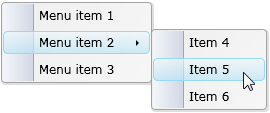
Creating a Menu in C#

Rate this page: 

1 Star 2 Star 3 Star 4 Star 5 Star
21 Ratings / 2.4 Average

Ultimate Gamers

  • 1 Gh0sT
  • 2 stig
  • 3 dhoz
  • 4 Armaggon.com
  • 5 seyhmusss
  • 6 mlitters
  • 7 RadiateLogic
  • 8 DutchRemco
  • 9 janso
  • 10 Gendibal

  • See the full chart here!

Silverlight Controls

  • Rich TextBox

    Create and edit rich content with this slick and expandable Rich TextBox...

  • TreeView

    This easy to use TreeView comes with drag and drop, sorting, searching and much more...

  • Context Menu

    You too can have cool popup context menus in your Silverlight applications...

  • Resizable Dialog

    Draggable and resizable popup dialogs are what serious Silverlight developers need...

  • Spell Checker

    Real-time spell checking in Silverlight? We did it first here...