
Latest News

  • Super Tower Defense Game
    Mar 10, 2010

    New to the games section is the new Super Tower Defense game. Defend your base from the ever advancing army of tanks, buggies...

  • New Rich Text Editor User Control
    Feb 19, 2010

    By popular request, here we present a re-usable User Control containing the Liquid RichTextBox along with the most common formatting functions included.

  • Silverlight 3 Controls V5.2.7 Released
    Feb 19, 2010

    This release includes several fixes for issues raised in the forum. The main improvement is to the RichTextBox which now provides access and methods to the document elements allowing...

  • Super Shoot Em Up Game
    Feb 04, 2010

    Added to the games section is the new Super Shoot 'Em Up game. Take control of a tank with your aim being to blow up your opposing tanks and collect all the powerups.

  • Silverlight 3 Controls V5.2.6 Released
    Feb 04, 2010

    This release includes some minor fixes for several forum posts. Please see the notes on the download page for full details on what has changed.

Silverlight Menu (Popup)

This free popup Menu control provides Silverlight developers with an easy to use and customizable popup menu system with a familiar default style.

This Silverlight only Menu Control is easy to implement on your Silverlight driven website and is also customizable to provide a visual feel suitable for any site design.
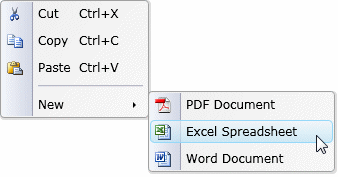
Silverlight Popup Menu

If you are developing using Silverlight 4 our tutorials sections contains a demo of the Popup Menu when used in conjunction with the right mouse click event to provide an easy way to implement Silverlight 4 Context Menus.

To use the Menu control you will need to add a reference to Liquid.Menu.dll in your project.


How to Use the Menu Control

To use the Menu on your Silverlight page:

<UserControl x:Class="Menu.Page"
    xmlns="http://schemas.microsoft.com/winfx/2006/xaml/presentation"
    xmlns:x="http://schemas.microsoft.com/winfx/2006/xaml"
    xmlns:liquidMenu="clr-namespace:Liquid;assembly=Liquid.Menu"
    Width="400" Height="300">
    <Canvas x:Name="LayoutRoot" Background="White">
        <Button Canvas.Left="20" Canvas.Top="20" Content="Show" Width="60" Height="20" Click="Button_Click" />
        <liquidMenu:Menu x:Name="popupMenu" Canvas.Left="40" Canvas.Top="40" ItemSelected="MenuList_ItemSelected" Visibility="Collapsed">
            <liquidMenu:MenuItem ID="cut" Icon="images/cut.png" Text="Cut" Shortcut="Ctrl+X" />
            <liquidMenu:MenuItem ID="copy" Icon="images/copy.png" Text="Copy" Shortcut="Ctrl+C" />
            <liquidMenu:MenuItem ID="paste" Icon="images/paste.png" Text="Paste" Shortcut="Ctrl+V" />
            <liquidMenu:MenuDivider />
            <liquidMenu:MenuItem ID="new" Text="New">
                <liquidMenu:Menu>
                    <liquidMenu:MenuItem ID="pdf" Icon="images/pdf.png" Text="PDF Document" />
                    <liquidMenu:MenuItem ID="excel" Icon="images/xls.png" Text="Excel Spreadsheet" />
                    <liquidMenu:MenuItem ID="word" Icon="images/doc.png" Text="Word Document" />
                </liquidMenu:Menu>
            </liquidMenu:MenuItem>
        </liquidMenu:Menu>
    </Canvas>
</UserControl>


Here we have a button which when clicked displays the Menu.  The Menu can contain any number of child options and also nested menus.  Images and Keyboard shortcuts can also be rendered with the menu title.

using System;
using System.Collections.Generic;
using System.Linq;
using System.Net;
using System.Windows;
using System.Windows.Controls;
using System.Windows.Documents;
using System.Windows.Input;
using System.Windows.Media;
using System.Windows.Media.Animation;
using System.Windows.Shapes;

using Liquid;

namespace Menu
{
    public partial class Page : UserControl
    {
        public Page()
        {
            InitializeComponent();
        }

        private void MenuList_ItemSelected(object sender, MenuEventArgs e)
        {
            switch (e.Tag.ToString())
            {
                case "cut":
                    // TODO: Cut functionality
                    break;
                case "copy":
                    // TODO: Copy functionality
                    break;
                default:
                    break;
            }
            popupMenu.Hide();
        }

        private void Button_Click(object sender, RoutedEventArgs e)
        {
            popupMenu.Show();
        }
    }
}


Example Silverlight Menu Control:

Silverlight Menu Control

Latest Forum Posts

Here are latest posts from around the forums, if you have a question about any of the Liquid controls you can get your answers in the Forum.

Thanks Dan,


I was looking for the Icon property in the wrong place (Menu rather than MenuItem).  Works great now!


Tiffany

Dan,

I'd like to request that the menu hides Child menus after mouse moves off the parent menu.


When the menu drops down, the only way to get rid of it is to click one of the menu items.  A timeout value and automatic hide would be great!!


Ron

dan posted on Hide icons in menu

Hi,


At the moment when no image is specified the empty image is still present with a Margin setting which is probably what your noticing.  The next version will completely hide the icon Image element when there is no Icon specified.  In the mean time you can create a custom style for your MenuItems, please see the default style on:


http://www.vectorlight.net/controls/menu_(popup)/visual_customizations.aspx


Simply apply Visibility = "Collapsed" to the ElementIcon in your custom style.


Thanks!

Hi,


You are right, the MainMenuItem class does have this property but is not used.  We will get this property implemented in the next version of the controls library.


Thanks!

dan posted on Bind menu item to XML?

Hi,


Unfortunately this cannot be done at this time, however if someone else has written some XML menu building code and would like to share it please post here.


Thanks!

Hi Jin,


Sorry, this is not possible at this time.  It is something we will look into to see how to implement this functionaily in a future version.


Thanks!

Silverlight Controls

  • Rich TextBox

    Create and edit rich content with this slick and expandable Rich TextBox...

  • TreeView

    This easy to use TreeView comes with drag and drop, sorting, searching and much more...

  • Context Menu

    You too can have cool popup context menus in your Silverlight applications...

  • Resizable Dialog

    Draggable and resizable popup dialogs are what serious Silverlight developers need...

  • Spell Checker

    Real-time spell checking in Silverlight? We did it first here...