
Latest News

  • Silverlight Online Chat
    Jul 24, 2010

    Today we launch the new Silverlight Live Chat application demonstrating the Liquid RichTextBox and Emoticon replacements.

  • New Super Shoot Em Up 2 Game
    Jun 29, 2010

    Added to the Games section is the new Super Shoot 'Em Up 2 game. Take control of your tank with the aim to defeat the computer controlled opponents. Features all new weapons, levels and Battle Mode!

  • Silverlight 4 Controls V5.3.2 Released
    Jun 28, 2010

    This release contains several fixes raised in the forums.

  • New Sandmania Puzzle Game
    Jun 18, 2010

    Sandmania is the latest game from vectorlight, the aim of this game is to guide sand from the top of the screen to the various colored containers below.

  • New Moon Tower Defense Game
    May 29, 2010

    Added to the Games section is the new Moon Tower Defense game. Defend the Moon from the circling Aliens and Humans.

Silverlight Main Menu

This free Main Menu control provides Silverlight developers with an easy to use and customizable drop down menu system with a familiar default style.

This Silverlight only Main Menu Control is easy to implement on your Silverlight driven website and is also customizable to provide a visual feel suitable for any site design.

To use the Main Menu control you will need to add a reference to Liquid.Menu.dll in your project.


How to Use the Main Menu Control

To use the Main Menu on your Silverlight page:

<UserControl x:Class="MainMenu.Page"
    xmlns="http://schemas.microsoft.com/winfx/2006/xaml/presentation"
    xmlns:x="http://schemas.microsoft.com/winfx/2006/xaml"
    xmlns:liquidMenu="clr-namespace:Liquid;assembly=Liquid.Menu"
    Width="400" Height="300">
    <Canvas x:Name="LayoutRoot" Background="White">
        <liquidMenu:MainMenu x:Name="testMenu" ItemSelected="testMenu_ItemSelected">
            <liquidMenu:MainMenu.Items>
                <liquidMenu:MainMenuItem Text="Menu 1">
                    <liquidMenu:Menu>
                        <liquidMenu:MenuItem ID="item11" Icon="images/document.png" Text="Item 1" />
                        <liquidMenu:MenuDivider />
                        <liquidMenu:MenuItem ID="item12" Icon="images/save.png" Shortcut="Ctrl+S" Text="Item 2" />
                        <liquidMenu:MenuDivider />
                        <liquidMenu:MenuItem ID="item13" Text="Item 3" />
                    </liquidMenu:Menu>
                </liquidMenu:MainMenuItem>
                <liquidMenu:MainMenuItem Text="Menu 2">
                    <liquidMenu:Menu>
                        <liquidMenu:MenuItem ID="item21" Text="Item 1" />
                        <liquidMenu:MenuItem ID="item22" Text="Item 2" />
                        <liquidMenu:MenuItem ID="item23" Text="Item 3" />
                    </liquidMenu:Menu>
                </liquidMenu:MainMenuItem>
                <liquidMenu:MainMenuItem Text="Menu 3">
                    <liquidMenu:Menu>
                        <liquidMenu:MenuItem ID="item31" Text="Item 1" />
                        <liquidMenu:MenuItem ID="item32" Text="Item 2" />
                        <liquidMenu:MenuDivider />
                        <liquidMenu:MenuItem ID="item33" Text="Item 3" />
                    </liquidMenu:Menu>
                </liquidMenu:MainMenuItem>
            </liquidMenu:MainMenu.Items>
        </liquidMenu:MainMenu>
    </Canvas>
</UserControl>


Here we have a menu with the name testMenu, this contains three child menus.  Each of these have child menu options, they can be nested as deep as required.

Note we assign an ID to each menu item, this allows us to detect which item has been selected using the ItemSelected event which you can see below.

using System;
using System.Collections.Generic;
using System.Linq;
using System.Net;
using System.Windows;
using System.Windows.Controls;
using System.Windows.Documents;
using System.Windows.Input;
using System.Windows.Media;
using System.Windows.Media.Animation;
using System.Windows.Shapes;

using Liquid;

namespace MainMenu
{
    public partial class Page : UserControl
    {
        public Page()
        {
            InitializeComponent();
        }

        private void testMenu_ItemSelected(object sender, MenuEventArgs e)
        {
            switch (e.Tag.ToString())
            {
                case "item11":
                    // TODO: New functionality
                    break;
                case "item12":
                    // TODO: Save functionality
                    break;
            }
        }
    }
}


The MenuList_ItemSelected event handler is called each time an item is selected.  The argument object passed in contains a Tag property which contains the ID of the item that generated the event.

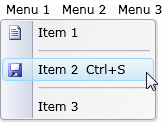
The menu control used here can display images and keyboard shortcuts as well as the title text.

Example Silverlight Main Menu Control:
Silverlight Main Menu Control

Latest Forum Posts

Here are latest posts from around the forums, if you have a question about any of the Liquid controls you can get your answers in the Forum.

danparker276 posted on Menu Items not Selectable

Sorry for posting again, but I figured where it goes wrong:

when I set the height in the second grid, it fails.  When I remove the 'Height=50'  below it works.  This was set in my styles from the default VS2010 project.


            <Grid Height="50"  x:Name="NavigationGrid">

                <Grid.RowDefinitions>


                    <RowDefinition Height="20" />


                    <RowDefinition Height="30" />


                    <RowDefinition />


                </Grid.RowDefinitions>

Hi Milos,


Thanks for this.  The MousePlus class was implemented in SL3 to overcome the lack of a right mouse click but as you've seen Silverlight 4 now has native support for the right mouse button.


Thanks!

Hi,


Keyboard navigation is not possible at this time, it may be implemented in a future version.


Thanks!

tanya posted on MainMenu and Opactiy

I found that it is caused by the busyindicator in the silverlight toolkit

but I have no idea how to fix it.. :s

Hi,


I assume it is inheriting this size from somewhere else in your app.  Have you tried applying the font size to the individual menu items:


<liquidMenu:MenuItem ID="delete" Icon="" Text="Delete" Shortcut="Del" FontSize="8" />


Thanks!

Hi Ken,


These two properties will be changed to Dependency Properties to allow use in style setters.


Thanks!

Rate this page: 

1 Star 2 Star 3 Star 4 Star 5 Star
14 Ratings / 2.9 Average

Ultimate Gamers

  • 1 stig
  • 2 Gh0sT
  • 3 dhoz
  • 4 janso
  • 5 gaaslin
  • 6 RadiateLogic
  • 7 dan
  • 8 Haroldo
  • 9 bigblue531
  • 10 oussama

  • See the full chart here!

Silverlight Controls

  • Rich TextBox

    Create and edit rich content with this slick and expandable Rich TextBox...

  • TreeView

    This easy to use TreeView comes with drag and drop, sorting, searching and much more...

  • Context Menu

    You too can have cool popup context menus in your Silverlight applications...

  • Resizable Dialog

    Draggable and resizable popup dialogs are what serious Silverlight developers need...

  • Spell Checker

    Real-time spell checking in Silverlight? We did it first here...